
Introduction:
This Part 1 post will show you how to create a GoldenGate Free 23.3 (Hub) that connects to two Oracle Database Free 23.3 (I am calling them West and East). This is extremely easy if we take advantage of containers as I will describe it below.
Part 2 will demonstrate how to automate the creation of the GoldenGate Bi-direction replication in 23c in this infrastructure.

Pre Requirement:
Basic knowledge and understanding of containers and Docker are necessary to run execute this procedures. This post will not go into detail how containers works. I have created and tested this in my MacBook but same procedures should work well on Windows and Linux.
1- Install Docker:
https://docs.docker.com/engine/install/
2- Install Docker Compose:
https://docs.docker.com/compose/install/
3- Pull (Download) the database image (optional, but good if you want to make it repeatable)
docker pull alexlima/oracle-free:23.3-slim-ogg
4- Pull (Download) the goldengate image (optional, but good if you want to make it repeatable)
docker pull alexlima/goldengate-free:latestCreate the Containers
1- Copy and paste the code below to file in a local directory and name it as compose.yaml
alexlima@alexlima-mac 1_ORACLE_FTE % mkdir -p LABS/Docker/compose
alexlima@alexlima-mac compose % ls -lrt compose.yaml
-rw-------@ 1 alexlima  staff  2386 Oct 12 11:54 compose.yaml
- compose.yaml file content:
# This Docker Compose file is for education purpose only and it contains all necessary components
# to instantiate one Oracle GoldenGate 23c Free instance and two Oracle Database 23c Free instances

# This yaml file will create 3 docker containers:
#   1- One Oracle Goldengate Hub
#   2- One Oracle Database 23c Free (Named: West)
#   3- One Oracle Database 23c Free (Named: East)

# To connect to goldengate and databases you can go to:
#  GG Free: https://localhost:415  [ user: oggadmin, password: Welcome##123 ]
#  GG Microservices: https://localhost:415/ogg  [ user: oggadmin, password: Welcome##123 ]
#
#  Database Service West for SQL Developer: localhost:1522/FREEPDB1  [ sys password: Welcome##123 ]
#  Database Service East for SQL Developer: localhost:1523/FREEPDB1  [ sys password: Welcome##123 ]
#
#  Internal ports all all the same: 1521
#  Database Service West for GoldenGate: 172.28.0.2:1521/FREEPDB1  [ oggadmin password: Welcome##123 ]
#  Database Service East for GoldenGate: 172.28.0.3:1521/FREEPDB1  [ oggadmin password: Welcome##123 ]

# Sample HR schema is installed on both databases

version: '3.8'
services:
# Create GoldenGate HUB Instance
 gg:
  container_name: ogg233demo
  hostname: ogg233demo
  image:  alexlima/goldengate-free:latest
  ports:
    - "415:443"
  deploy:
    resources:
        limits:
          cpus: '4.0'
          memory: 4098M
        reservations:
          cpus: '2.0'
          memory: 2048M
  environment:
    - OGG_ADMIN_PWD=Welcome##123
    - OGG_DEPLOYMENT=west
  networks:
    ogg_docker_network:
      ipv4_address: 172.28.0.100
  volumes:
    - ${PWD}/cert:/etc/nginx/cert:rw

# Create WEST Side Database 23.3 Free
 databaseW:
  container_name: db233demoW
  hostname: db233demoW
  image: alexlima/oracle-free:23.3-slim-ogg
  ports:
    - "1522:1521"
  environment:
    - ORACLE_PASSWORD=Welcome##123
  restart: unless-stopped
  networks:
    ogg_docker_network:
      ipv4_address: 172.28.0.2

# Create EAST Side Database 23.3 Free
 databaseE:
  container_name: db233demoE
  hostname: db233demoE
  image: alexlima/oracle-free:23.3-slim-ogg
  ports:
    - "1523:1521"
  environment:
    - ORACLE_PASSWORD=Welcome##123
  restart: unless-stopped
  networks:
    ogg_docker_network:
      ipv4_address: 172.28.0.3

networks:
   ogg_docker_network:
     driver: bridge
     ipam:
      config:
       - subnet: 172.28.0.0/16
2- Navigate your cursor to the directory created
alexlima@alexlima-mac 1_ORACLE_FTE % cd LABS/Docker/compose
3- Execute the YAML file to create One GoldenGate Instance and Two Databases container infrastructure
alexlima@alexlima-mac compose % docker compose up -d
[+] Running 4/4
 ✔ Network compose_ogg_docker_network  Created                                                                                                                                                                               0.1s
 ✔ Container ogg233demo                Started                                                                                                                                                                               0.1s
 ✔ Container db233demoE                Started                                                                                                                                                                               0.1s
 ✔ Container db233demoW                Started                                                                                                                                                                               0.1s
alexlima@alexlima-mac compose %
4- Check the container’s health
alexlima@alexlima-mac compose % docker ps
CONTAINER ID   IMAGE                                COMMAND                  CREATED          STATUS                    PORTS                                           NAMES
b7d6183ec0e2   alexlima/goldengate-free:latest      "/u01/oggf/bin/boots…"   33 seconds ago   Up 31 seconds (healthy)   80/tcp, 0.0.0.0:415->443/tcp, :::415->443/tcp   ogg233demo
48cfcd661172   alexlima/oracle-free:23.3-slim-ogg   "/opt/oracle/run.sh"     33 seconds ago   Up 31 seconds             0.0.0.0:1522->1521/tcp, :::1522->1521/tcp       db233demoW
2f7496418a57   alexlima/oracle-free:23.3-slim-ogg   "/opt/oracle/run.sh"     33 seconds ago   Up 31 seconds             0.0.0.0:1523->1521/tcp, :::1523->1521/tcp       db233demoE
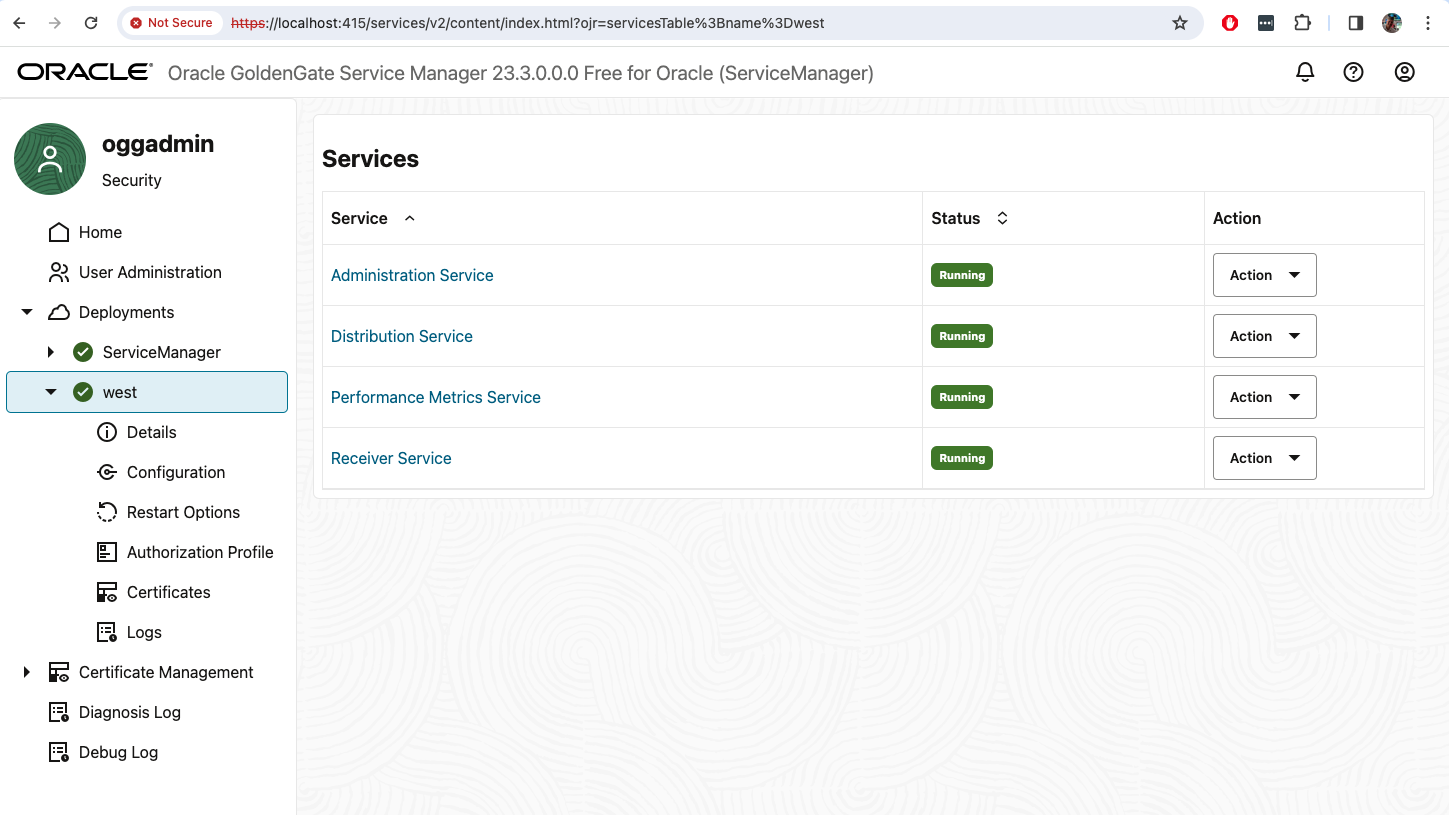
5- Connect to the GoldenGate Instance
To connect to goldengate and databases you can go to:
- GG 23c Free: https://localhost:415
- GG 23c Core Microservices: https://localhost:415/ogg
- [ user: oggadmin, password: Welcome##123 ]

6- Connect to both Database Instances (West and East)
- Database Service West for SQL Developer: localhost:1522/FREEPDB1
- Database Service East for SQL Developer: localhost:1523/FREEPDB1
- [ username: sys password: Welcome##123 ]
7- Delete the entire infrastructure at once
alexlima@alexlima-mac compose % docker compose down
[+] Running 4/4
 ✔ Container db233demoE                Removed                                                                                                                                                                              10.7s
 ✔ Container ogg233demo                Removed                                                                                                                                                                              11.0s
 ✔ Container db233demoW                Removed                                                                                                                                                                              11.2s
 ✔ Network compose_ogg_docker_network  Removed
This end the easy steps for infrastructure deployment of GoldenGate in a Docker (Container) configuration.
What’s Next?
Part 2 of this series will demonstrate how we can automate the GoldenGate processes from connections to add schematrandata, and checkpoint tables to enable extracts and replicats. Stay tuned and subscribe.


 Alex Lima
Leave a comment